BDB Design
System
BDB Design
System
BDB Design
System
A unified, scalable design language for a complex enterprise analytics ecosystem
A unified, scalable design language for a complex enterprise analytics ecosystem
A unified, scalable design language for a complex enterprise analytics ecosystem
ROLE
Product Designer
DURATION
8 Months
EXPERTISE
UI/UX Design
PLATFORM
Web Application
ROLE
ROLE
Product Designer
Product Designer
DURATION
DURATION
8 Months
8 Months
EXPERTISE
UI/UX Design
UI/UX Design
PLATFORM
Web Application
Web Application
Overview
Overview
A design system is only as valuable as its adoption. I built BDB's first unified design language not just as a component library, but as a shared contract between design and engineering — one that reduced duplicated effort and gave the product a visual identity it could scale from.
A design system is only as valuable as its adoption. I built BDB's first unified design language not just as a component library, but as a shared contract between design and engineering — one that reduced duplicated effort and gave the product a visual identity it could scale from.
Problem Statement
Problem Statement
Before the design system, BDB.ai had a set of identifiable problems that compounded each other:
Visual inconsistency — multiple button styles, alert variants, and icon treatments with no shared logic between them
Redundant component creation — engineering was reimplementing components from scratch because there was no agreed-upon reference
Disconnected interaction patterns — the same user action triggered different behaviors depending on the module
User confusion in data-dense views — no hierarchy system meant every screen competed visually for attention
Slow design-development cycles — handoffs required significant clarification because nothing was standardized
Before the design system, BDB.ai had a set of identifiable problems that compounded each other:
Visual inconsistency — multiple button styles, alert variants, and icon treatments with no shared logic between them
Redundant component creation — engineering was reimplementing components from scratch because there was no agreed-upon reference
Disconnected interaction patterns — the same user action triggered different behaviors depending on the module
User confusion in data-dense views — no hierarchy system meant every screen competed visually for attention
Slow design-development cycles — handoffs required significant clarification because nothing was standardized
The challenge
The challenge
Create a unified visual language and component library for a multi-module enterprise analytics platform — comprehensive enough to bring consistency across existing modules, flexible enough to support new ones, and practical enough to actually be adopted by engineering teams working under delivery pressure. The last requirement was the hardest. A design system that lives in Figma but doesn't get implemented is documentation, not a system.
Create a unified visual language and component library for a multi-module enterprise analytics platform — comprehensive enough to bring consistency across existing modules, flexible enough to support new ones, and practical enough to actually be adopted by engineering teams working under delivery pressure. The last requirement was the hardest. A design system that lives in Figma but doesn't get implemented is documentation, not a system.
Design Process: Structured for Scale
Design Process: Structured for Scale
I built the system in three layers — core visual language, component library, and interaction standards — in that order. Skipping to components without a solid foundation is why most design systems fail to scale.
I built the system in three layers — core visual language, component library, and interaction standards — in that order. Skipping to components without a solid foundation is why most design systems fail to scale.
A constraint I worked within
The system had to be introduced incrementally — we couldn't pause feature delivery to rewrite the entire codebase. I prioritized components by two criteria: frequency of use across the product, and severity of the inconsistency problem. The components that appeared most often and had the most divergent implementations were addressed first. Lower-frequency components were documented but implementation was deferred to future sprints.
A constraint I worked within
The system had to be introduced incrementally — we couldn't pause feature delivery to rewrite the entire codebase. I prioritized components by two criteria: frequency of use across the product, and severity of the inconsistency problem. The components that appeared most often and had the most divergent implementations were addressed first. Lower-frequency components were documented but implementation was deferred to future sprints.
Colour System
Colour System
Core Visual Language — Color
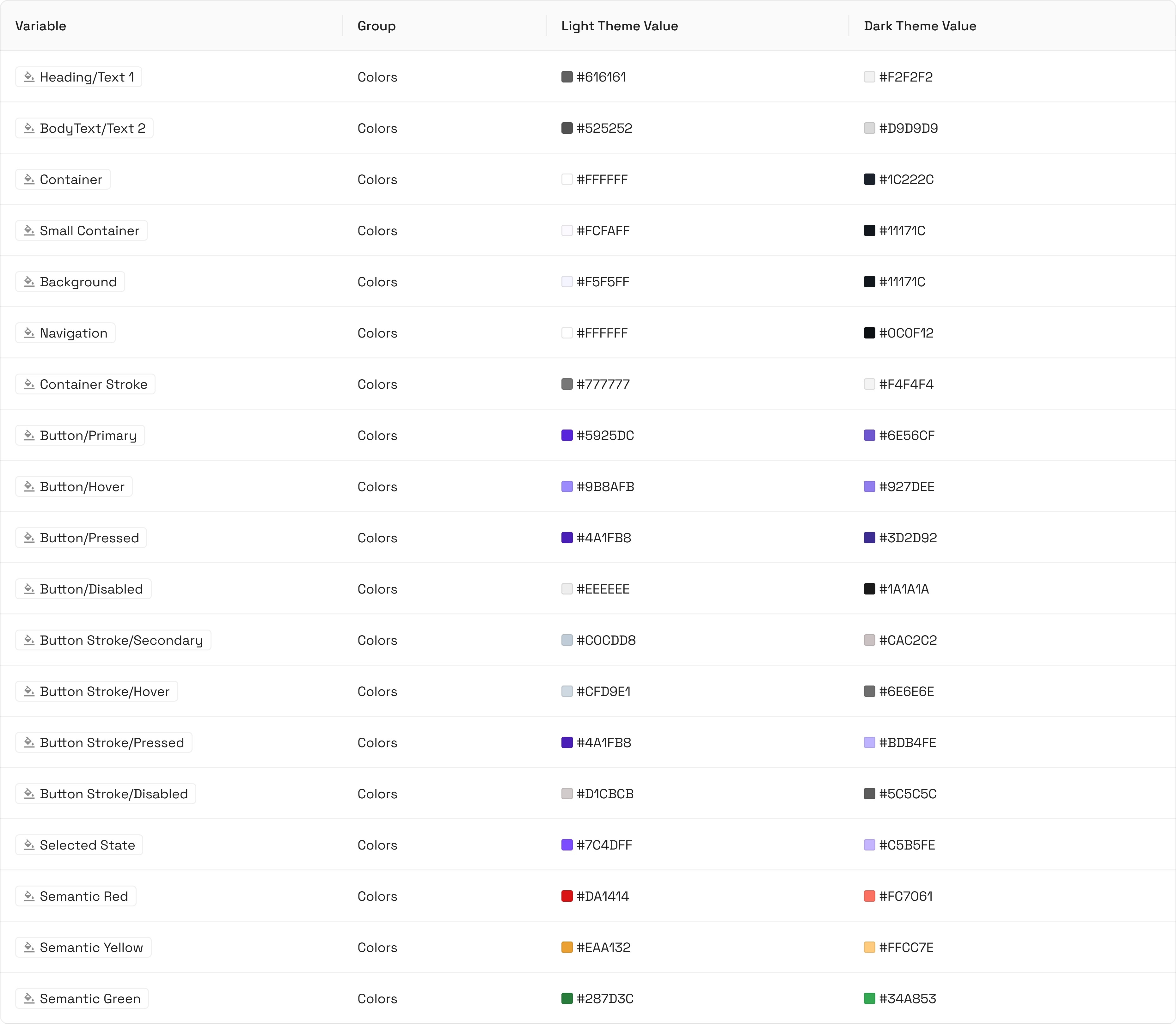
I started with a neutral gray scale as the foundation: text, borders, containers. Then a brand color system built around a primary purple that maps to button states, selection states, hover states, and backgrounds — all defined as design tokens.
The neutral foundation was deliberate: data visualizations — charts, graphs, pipeline diagrams — needed room to be visually prominent. In analytics software, the data is the product. The interface should step back.
Gray
Gray
Gray is a neutral color and is the foundation of the color system. Almost everything in UI design—text, form fields, backgrounds, dividers—are usually gray.
Gray is a neutral color and is the foundation of the color system. Almost everything in UI design—text, form fields, backgrounds, dividers—are usually gray.
Container
Container
#FFFFFF
Dark mode Text
Dark Mode
#D9D9D9
Border
Border
#777777
Text 1
Text 1
#616161
Text 2
Text 2
#525252
Brand
The brand color is your "primary" color, and is used across all interactive elements such as buttons, links, inputs, etc. This color can define the overall feel and can elicit emotion.
Small container
#FCFAFF
Back-ground
#F5F5FF
Button Hover
#9B8AFB
Selected State
#7C4DFF
Button
#5925DC
Brand
The brand color is your "primary" color, and is used across all interactive elements such as buttons, links, inputs, etc. This color can define the overall feel and can elicit emotion.
The brand color is your "primary" color, and is used across all interactive elements such as buttons, links, inputs, etc. This color can define the overall feel and can elicit emotion.
Small container
#FCFAFF
Background
#F5F5FF
ButtonHover
#9B8AFB
Selected State
#7C4DFF
Button
#5925DC
Typography
Typography
Core Visual Language — Typography
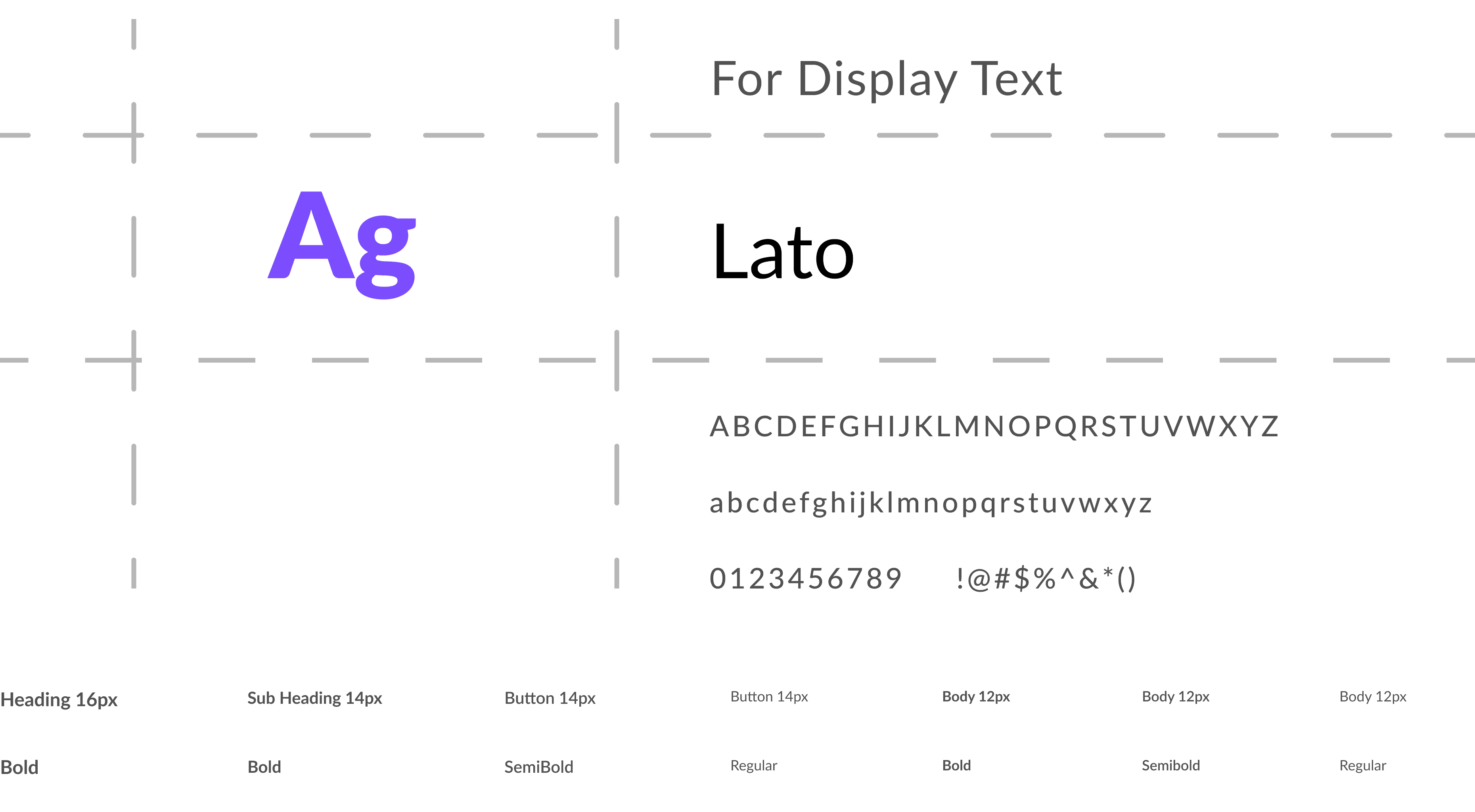
I defined a six-step type scale covering display headings, section headings, labels, body text, captions, and data values — each with a designated weight, size, and line height. Typography decisions in analytics software have to account for data density: the same type scale needs to work in a dense pipeline view and in an empty onboarding screen.
Iconography
Iconography
Components
Components
Component Library
I designed and documented components with full state coverage. Every component was documented with: when to use it, when not to use it, how it behaves across states, and how it responds at different breakpoints.
Interaction & Behavior Standards
Beyond components, I documented behavioral standards: hover state conventions, focus behavior, error handling patterns, and responsive breakpoint behavior. This existed specifically so engineers implementing components didn't have to guess at the intent — and so the system could be used by new team members without needing me in the room.
Alert
Alert
An alert is a UI component that notifies users about important information that needs their attention. Alerts can warn, inform, confirm an action, or show success/failure messages.
An alert is a UI component that notifies users about important information that needs their attention. Alerts can warn, inform, confirm an action, or show success/failure messages.
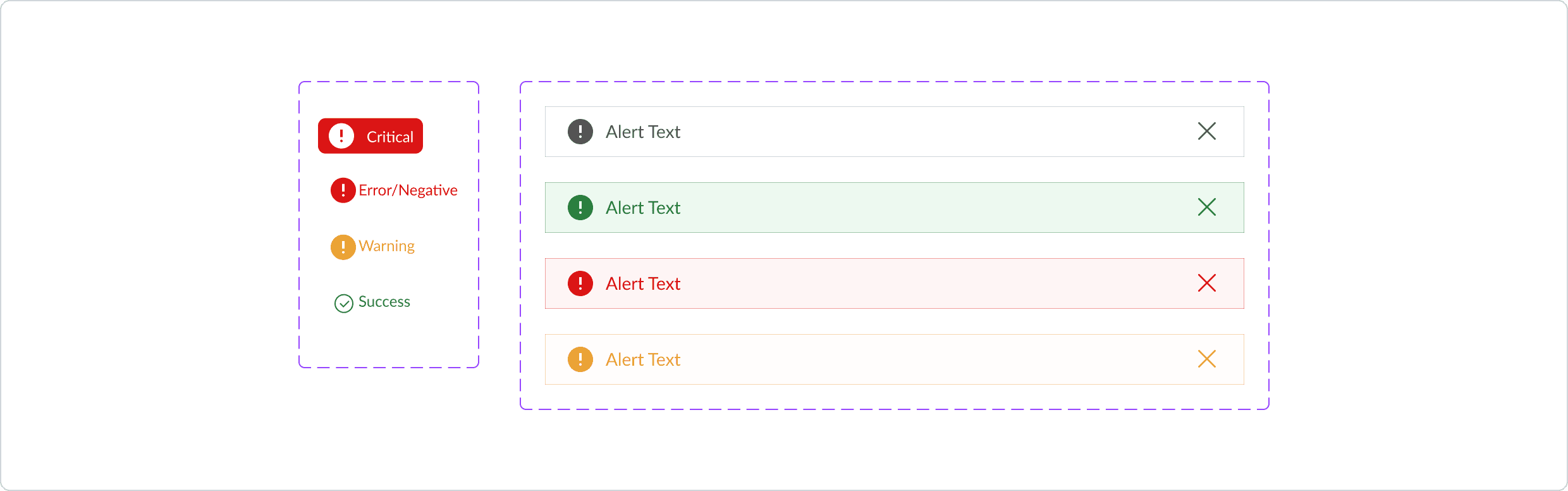
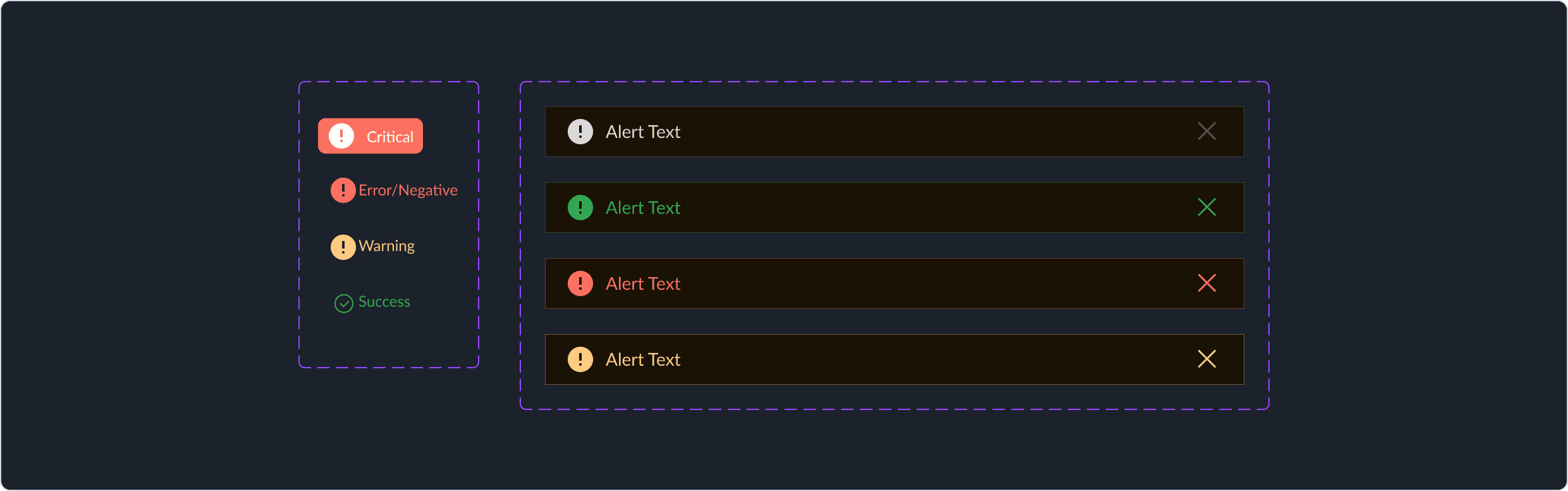
Error/Negative
Success
Warning
Critical
Alert Text
Alert Text
Alert Text
Alert Text
Error/Negative
Success
Warning
Critical
Alert Text
Alert Text
Alert Text
Alert Text
Breadcrumb
Breadcrumb
A breadcrumb is a horizontal list of links that represent the path from the homepage to the current page. Breadcrumbs are most helpful when:
The product has deep hierarchy
Users browse categories
There are multiple nested levels
There's need for backtracking
A breadcrumb is a horizontal list of links that represent the path from the homepage to the current page. Breadcrumbs are most helpful when:
The product has deep hierarchy
Users browse categories
There are multiple nested levels
There's need for backtracking
DEFAULT
HOVER
PRESSED
Datacenter
/
Setup Data Connector
/
Setup Data Connector
Datacenter
/
Setup Data Connector
/
Setup Data Connector
Datacenter
/
Setup Data Connector
/
Setup Data Connector


DEFAULT
HOVER
PRESSED
Datacenter
/
Setup Data Connector
/
Setup Data Connector
Datacenter
/
Setup Data Connector
/
Setup Data Connector
Datacenter
/
Setup Data Connector
/
Setup Data Connector
Button
Button
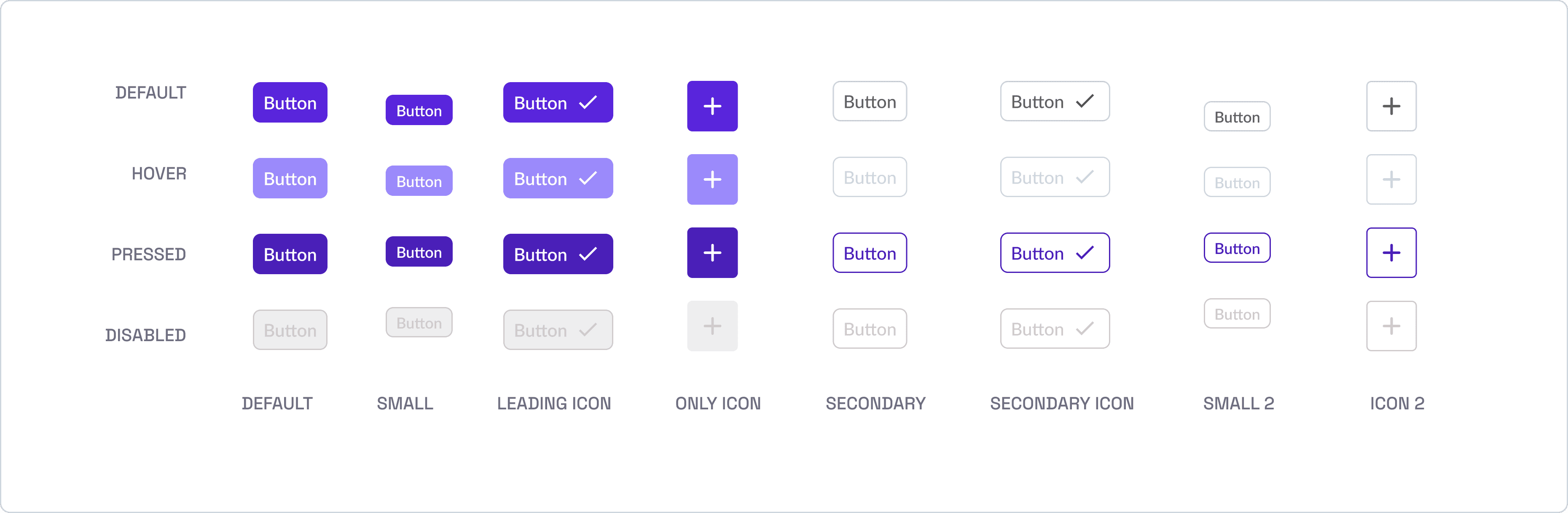
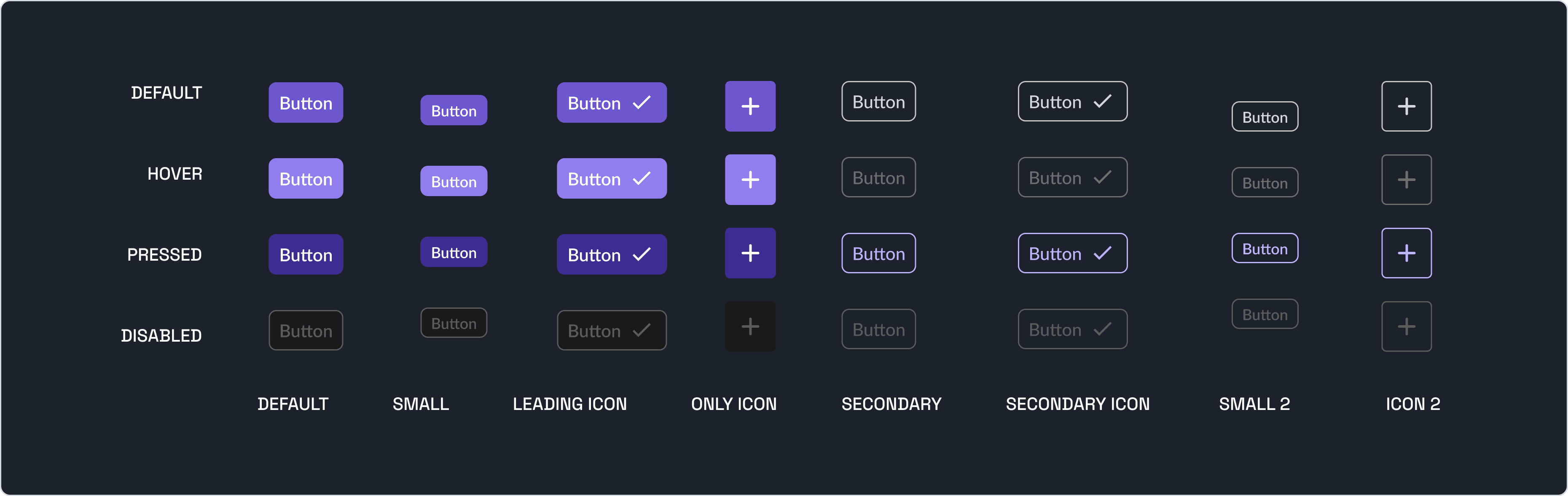
A button is an essential interactive UI element that users click to initiate an action or response. It serves as a clear call to action, guiding users towards intended functionalities.
A button is an essential interactive UI element that users click to initiate an action or response. It serves as a clear call to action, guiding users towards intended functionalities.
Primary Button
Primary Button
The primary button is used for the most important action on a page or modal. It should be used for actions that you want to encourage the user to perform, such as "Save", "Submit", or "Continue". This button should stand out the most on the page to draw attention.
The primary button is used for the most important action on a page or modal. It should be used for actions that you want to encourage the user to perform, such as "Save", "Submit", or "Continue". This button should stand out the most on the page to draw attention.
Secondary Button
Secondary Button
Secondary buttons are used for actions that are less important than those triggered by primary buttons. They are often used for actions like "Cancel" or "Back". Use these when you want the action to be available but not to compete with the primary action.
Secondary buttons are used for actions that are less important than those triggered by primary buttons. They are often used for actions like "Cancel" or "Back". Use these when you want the action to be available but not to compete with the primary action.
DEFAULT
HOVER
PRESSED
DISABLED
Button
Button
Button
Button
Button
Button
Button
Button
Button
Button
Button
Button
Button
Button
Button
Button
Button
Button
Button
Button
Button
Button
Button
Button
DEFAULT
SMALL
LEADING ICON
ONLY ICON
SECONDARY
SECONDARY ICON
SMALL 2
ICON 2
DEFAULT
HOVER
PRESSED
DISABLED
Button
Button
Button
Button
Button
Button
Button
Button
Button
Button
Button
Button
Button
Button
Button
Button
Button
Button
Button
Button
Button
Button
Button
Button
DEFAULT
SMALL
LEADING ICON
ONLY ICON
SECONDARY
SECONDARY ICON
SMALL 2
ICON 2
Date Picker
Date Picker
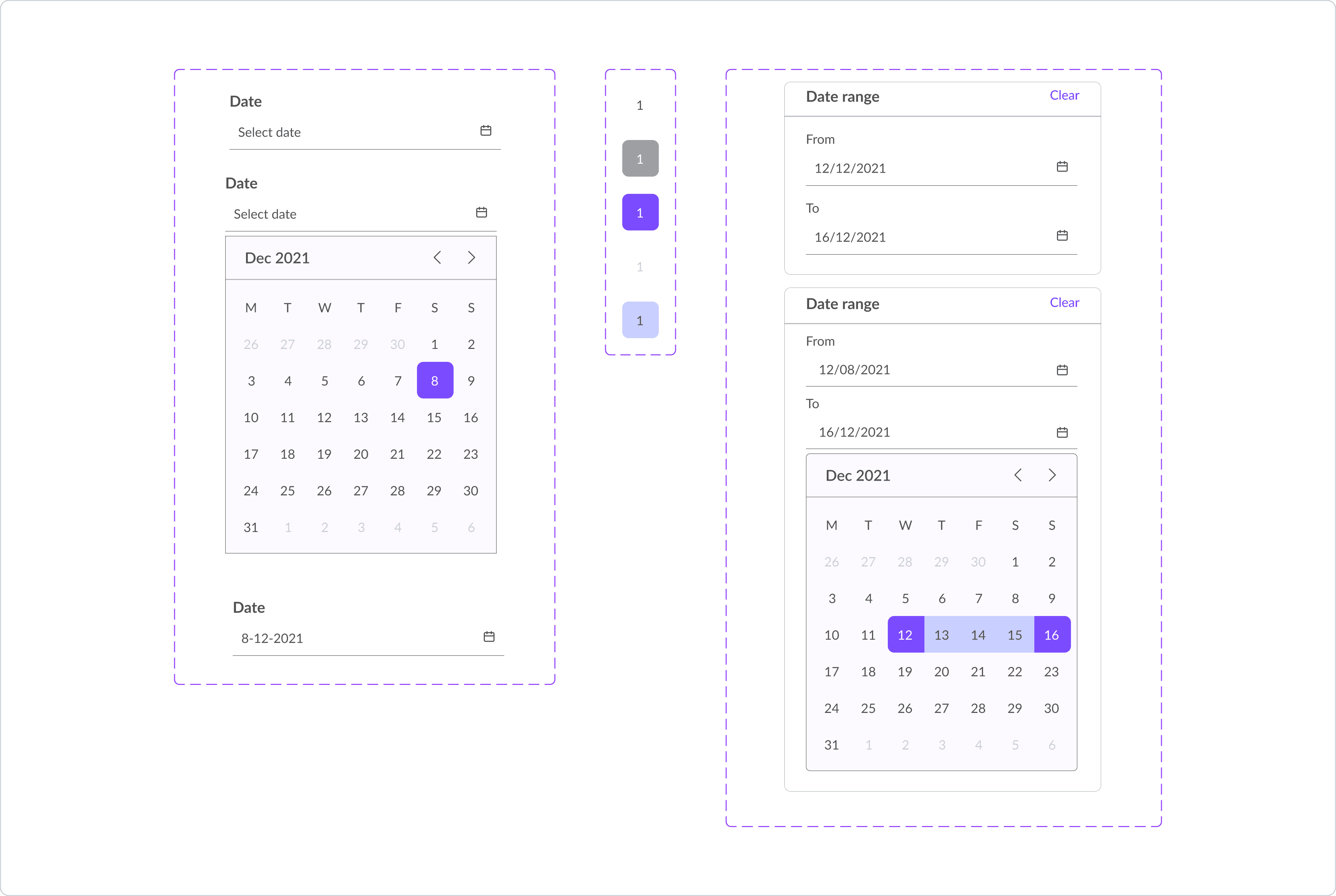
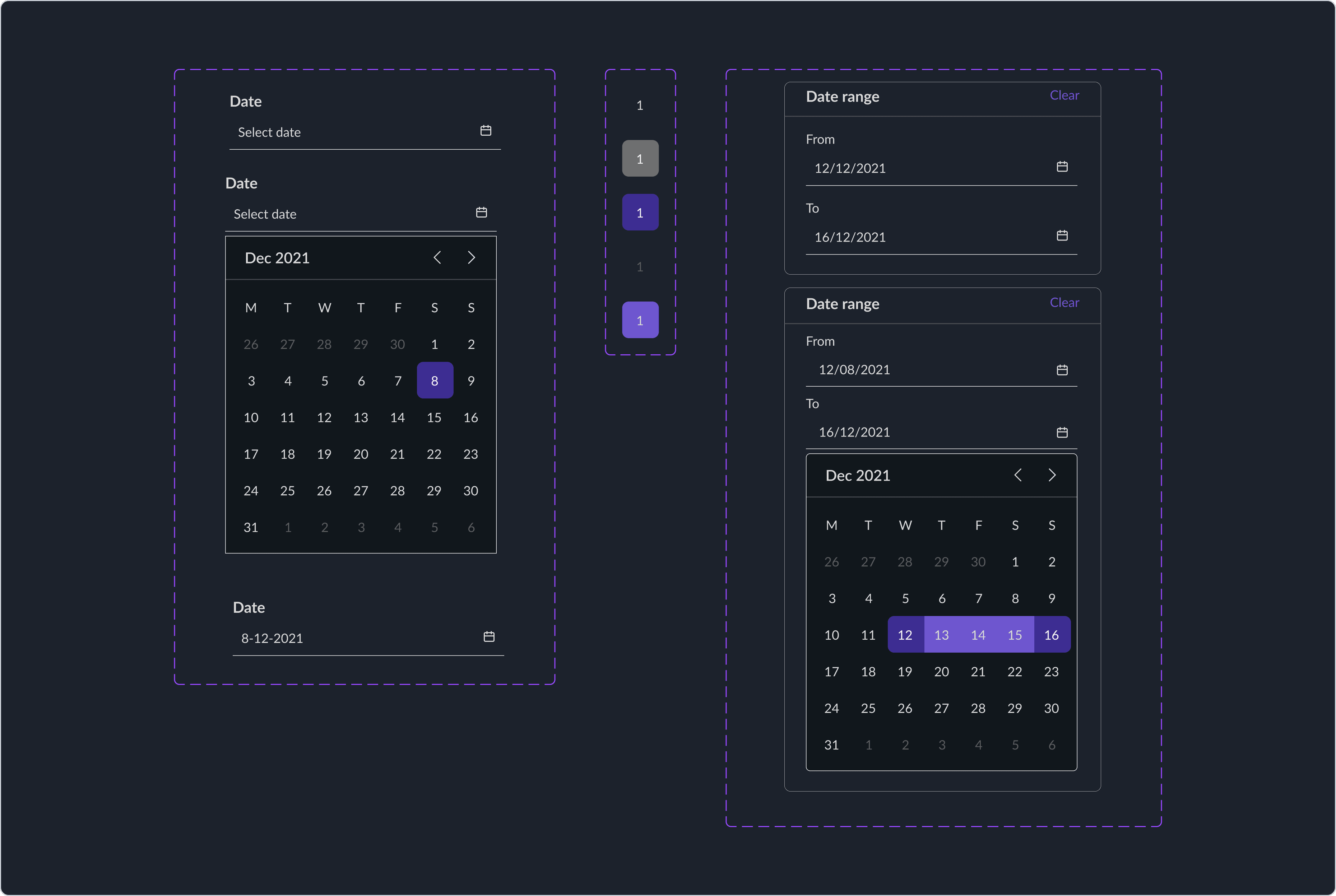
A date picker is a UI component that allows users to select a date or a date range from a calendar-style interface instead of typing manually. It improves accuracy and makes date input faster and more user-friendly.
A date picker is a UI component that allows users to select a date or a date range from a calendar-style interface instead of typing manually. It improves accuracy and makes date input faster and more user-friendly.
Date
Select date
Dec 2021
M
T
W
T
F
S
S
26
27
28
29
30
1
2
3
4
5
6
7
8
9
10
11
12
13
14
15
16
17
18
19
20
21
22
23
24
25
26
27
28
29
30
31
1
2
3
4
5
6
Date
Select date
Date
8-12-2021
1
1
1
1
1
Date range
Clear
From
12/12/2021
To
16/12/2021
Date range
Clear
From
12/08/2021
To
16/12/2021
Dec 2021
M
T
W
T
F
S
S
26
27
28
29
30
1
2
3
4
5
6
7
8
9
10
11
12
13
14
15
16
17
18
19
20
21
22
23
24
25
26
27
28
29
30
31
1
2
3
4
5
6
Date
Select date
Dec 2021
M
T
W
T
F
S
S
26
27
28
29
30
1
2
3
4
5
6
7
8
9
10
11
12
13
14
15
16
17
18
19
20
21
22
23
24
25
26
27
28
29
30
31
1
2
3
4
5
6
Date
Select date
Date
8-12-2021
1
1
1
1
1
Date range
Clear
From
12/12/2021
To
16/12/2021
Date range
Clear
From
12/08/2021
To
16/12/2021
Dec 2021
M
T
W
T
F
S
S
26
27
28
29
30
1
2
3
4
5
6
7
8
9
10
11
12
13
14
15
16
17
18
19
20
21
22
23
24
25
26
27
28
29
30
31
1
2
3
4
5
6
Dropdown
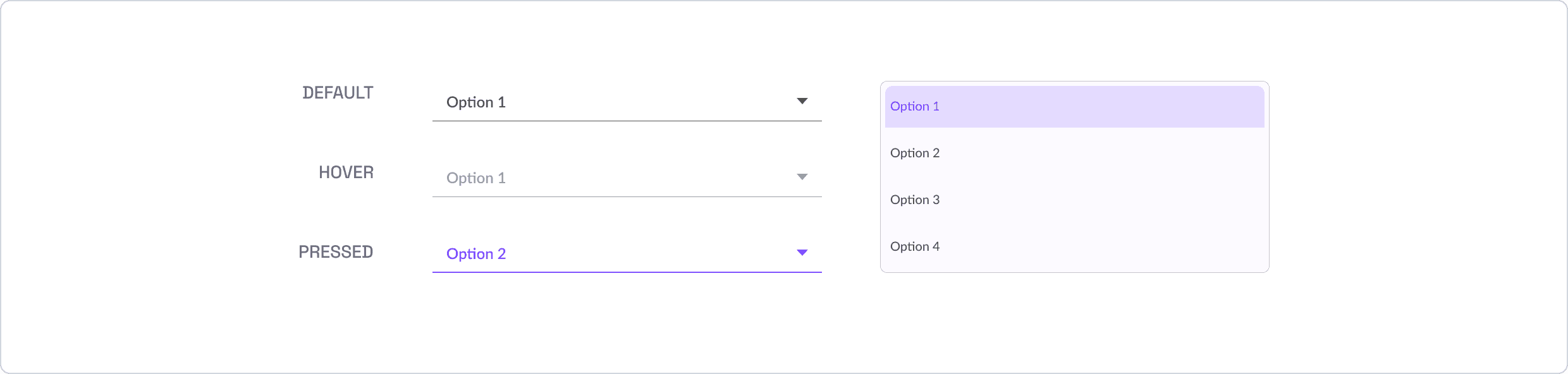
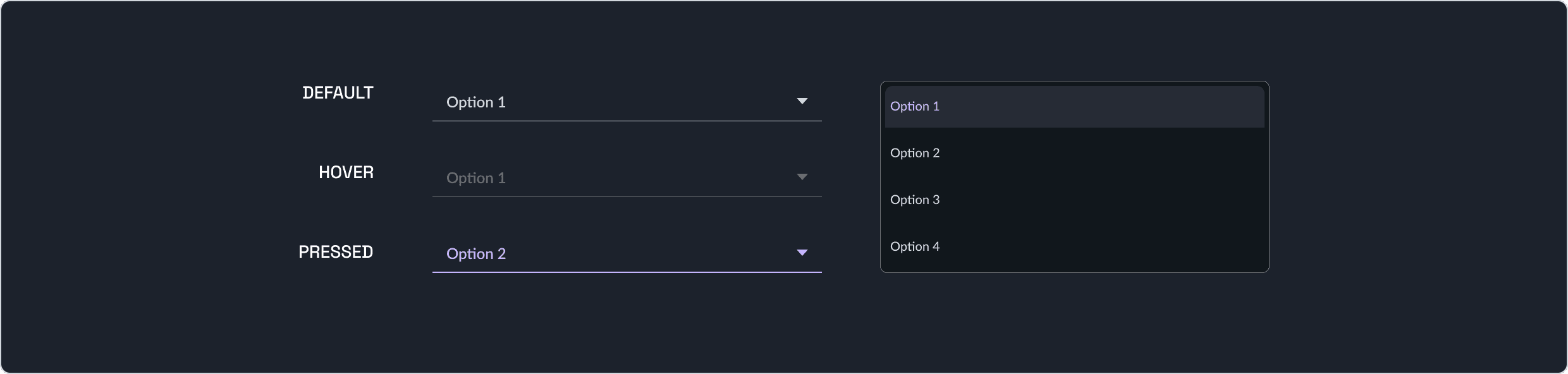
Use a single select dropdown when the user needs to choose only one option from a list. This is appropriate for settings where only one choice is valid and simplifies decision-making for the user
Use a single select dropdown when the user needs to choose only one option from a list. This is appropriate for settings where only one choice is valid and simplifies decision-making for the user
DEFAULT
HOVER
PRESSED
Option 1
Option 1
Option 2
Option 1
Option 2
Option 3
Option 4
DEFAULT
HOVER
PRESSED
Option 1
Option 1
Option 2
Option 1
Option 2
Option 3
Option 4
Input Field
Input Field
An input field is a box or area in a website or app where users can type or select data — like name, email, password, search terms, numbers, etc.
An input field is a box or area in a website or app where users can type or select data — like name, email, password, search terms, numbers, etc.
DEFAULT
HOVER
PRESSED
DISABLED
ERROR
Placeholder text
Placeholder text
Placeholder text
Placeholder text
Error


DEFAULT
HOVER
PRESSED
DISABLED
ERROR
Placeholder text
Placeholder text
Placeholder text
Placeholder text
Error
Modal
A modal (or modal dialog) is a UI overlay that appears on top of the page and requires user interaction before the user can continue.
It temporarily blocks the rest of the interface until the user:
Confirms something
Cancels something
Reads critical information
It is called “modal” because it forces the user into a mode of interaction.
A modal (or modal dialog) is a UI overlay that appears on top of the page and requires user interaction before the user can continue.
It temporarily blocks the rest of the interface until the user:
Confirms something
Cancels something
Reads critical information
It is called “modal” because it forces the user into a mode of interaction.
Modal title
Lorem ipsum dolor sit amet, consectetur adipiscing elit interdum hendrerit ex vitae sodales.
Cancel
Save


Modal title
Lorem ipsum dolor sit amet, consectetur adipiscing elit interdum hendrerit ex vitae sodales.
Cancel
Save
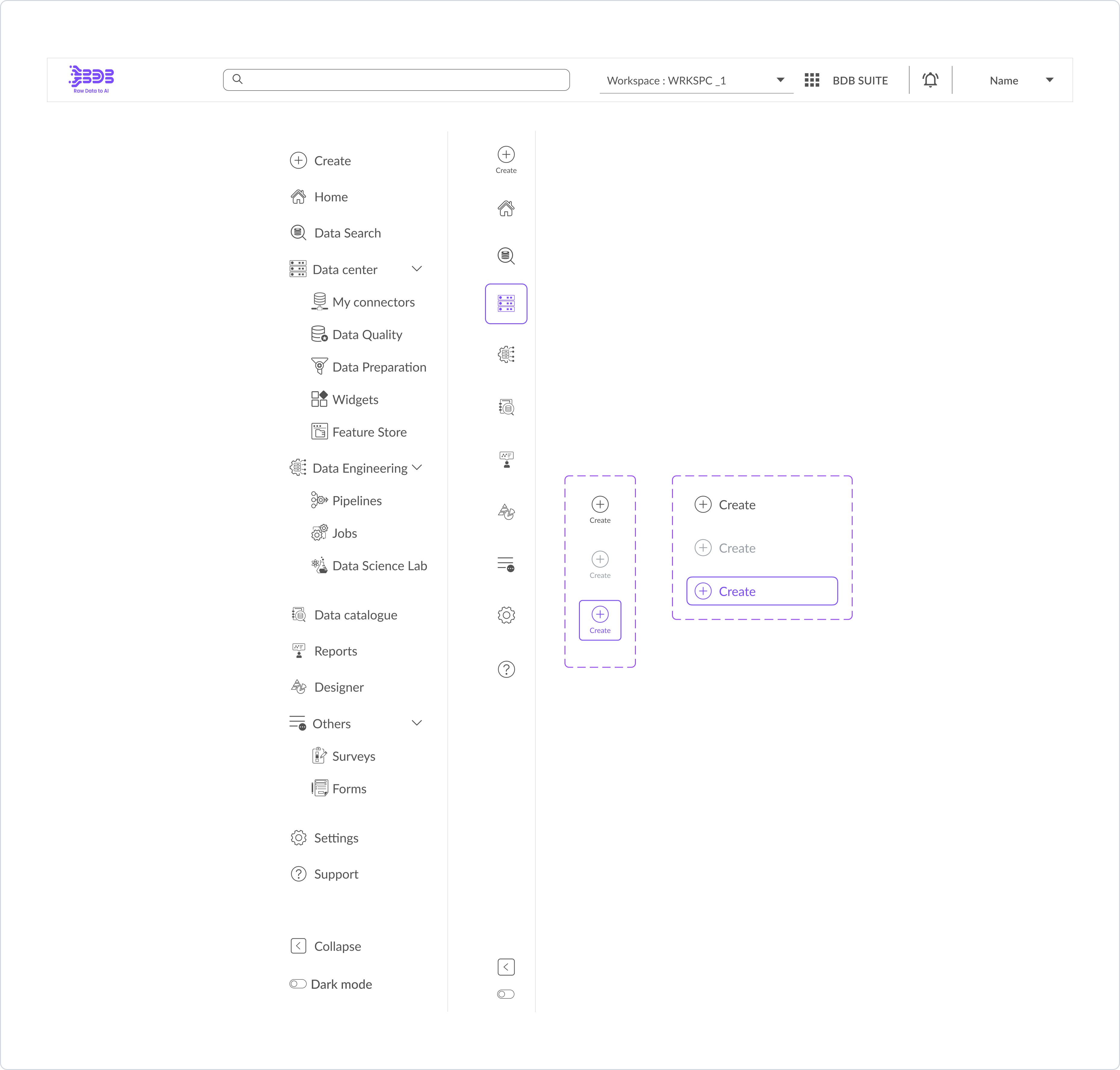
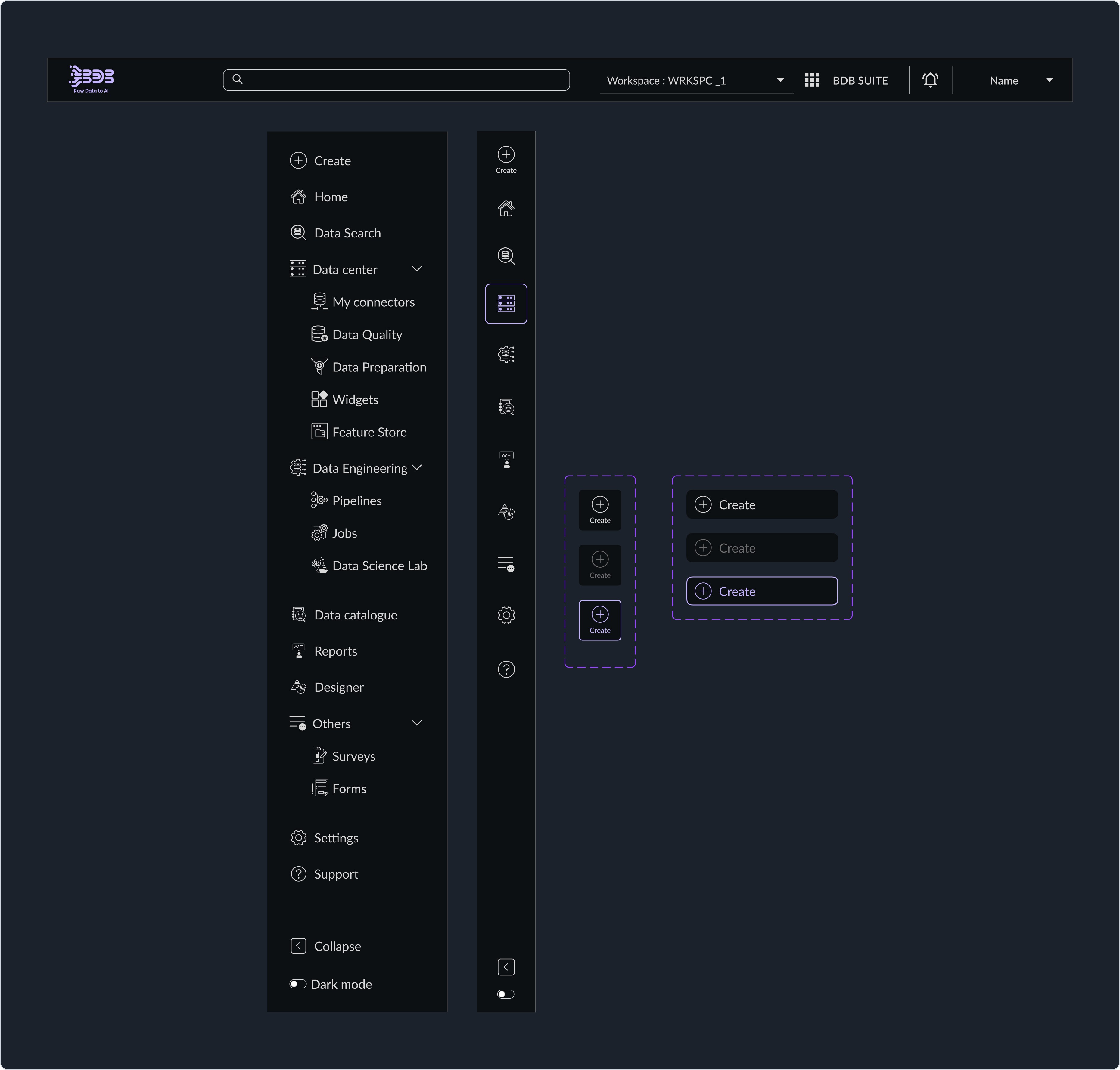
Navigation
Navigation refers to the UI components and structural patterns that help users move through an app or website and find what they need easily.
It defines how content is organized and how users access it.
Navigation refers to the UI components and structural patterns that help users move through an app or website and find what they need easily.
It defines how content is organized and how users access it.
Top Navigation
Top Navigation
Placed at the top of the screen.
Used for:
Websites
Dashboards
Desktop screens
Placed at the top of the screen.
Used for:
Websites
Dashboards
Desktop screens
Side Navigation
Side Navigation
Vertical list on the left or right side.
Used for:
Complex apps
Dashboards (BDB, analytics tools)
Settings pages
Can be collapsible for better space usage.
Vertical list on the left or right side.
Used for:
Complex apps
Dashboards (BDB, analytics tools)
Settings pages
Can be collapsible for better space usage.
Pagination
Pagination provides horizontal navigation between chunks (pages) of a dataset. A long list can be divided into several pages using Pagination, and only one page will be loaded at a time.
Pagination provides horizontal navigation between chunks (pages) of a dataset. A long list can be divided into several pages using Pagination, and only one page will be loaded at a time.
Prev
1
2
3
...
10
Next
1
2
3
...
10


Prev
1
2
3
...
10
Next
1
2
3
...
10
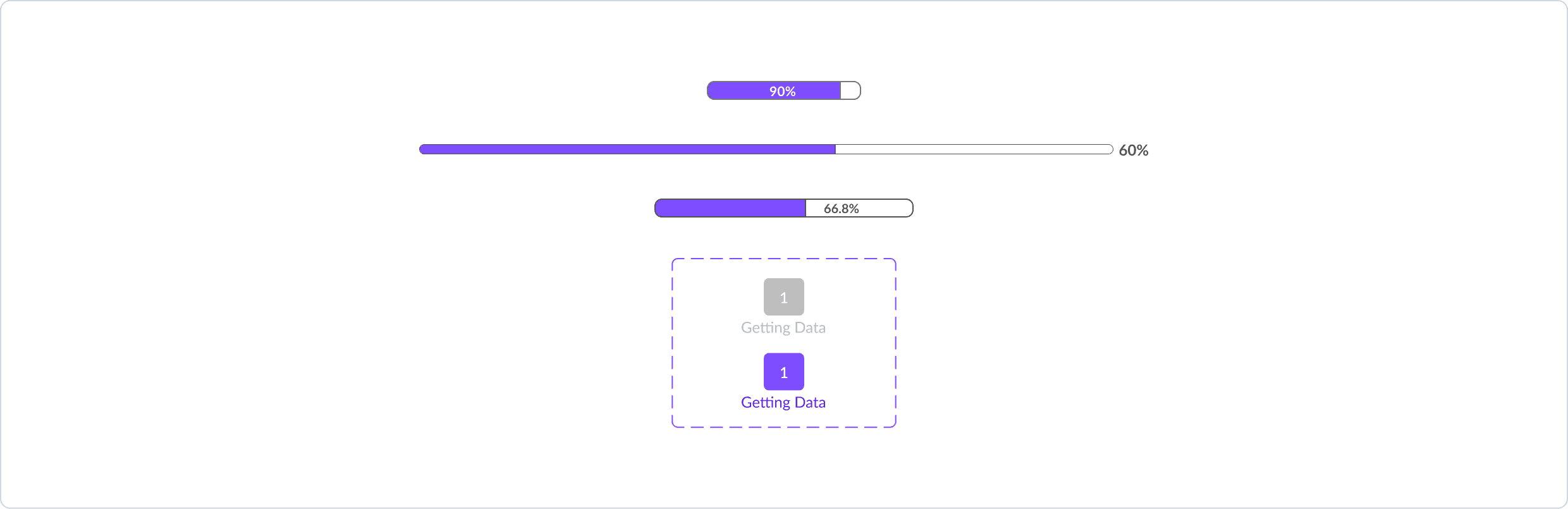
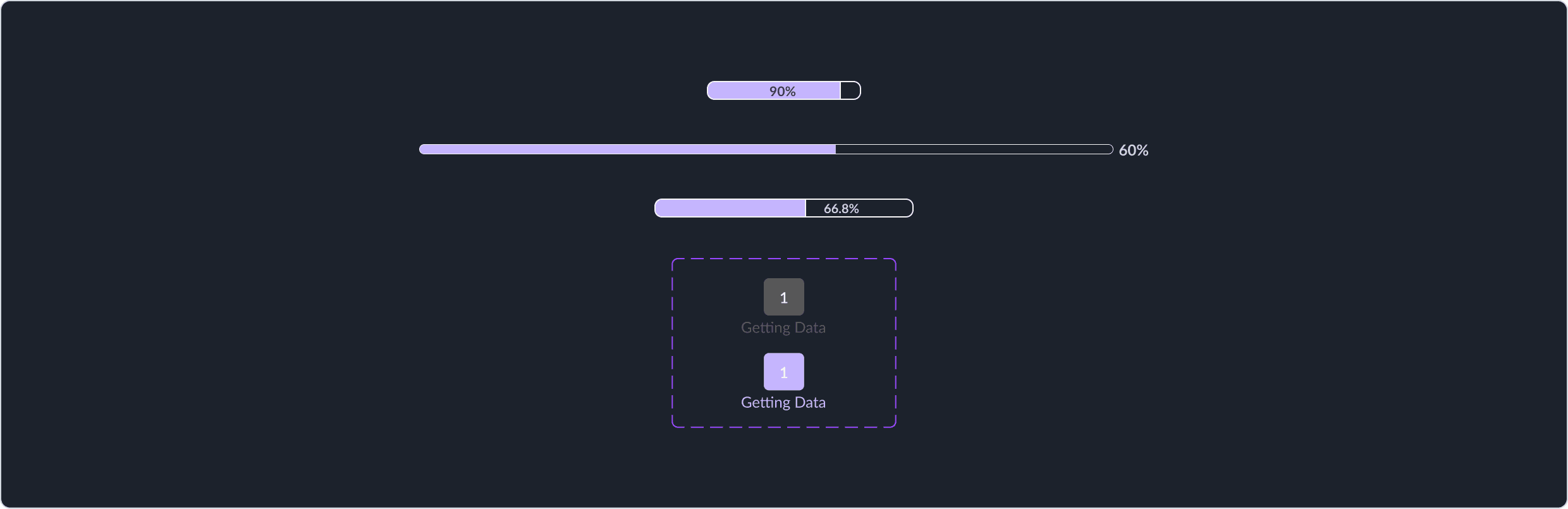
Progress Indicators
A progress indicator is a UI element that shows the status of an ongoing process — how long something will take, how much is completed, or simply that something is in progress.
Used in:
File uploads
Onboarding flows
Checkout process
Form steps
Data processing / loading
A progress indicator is a UI element that shows the status of an ongoing process — how long something will take, how much is completed, or simply that something is in progress.
Used in:
File uploads
Onboarding flows
Checkout process
Form steps
Data processing / loading
90%
60%
66.8%
1
Getting Data
1
Getting Data
90%
60%
66.8%
1
Getting Data
1
Getting Data
Radio , Checkbox and Toggle
Radio , Checkbox and Toggle
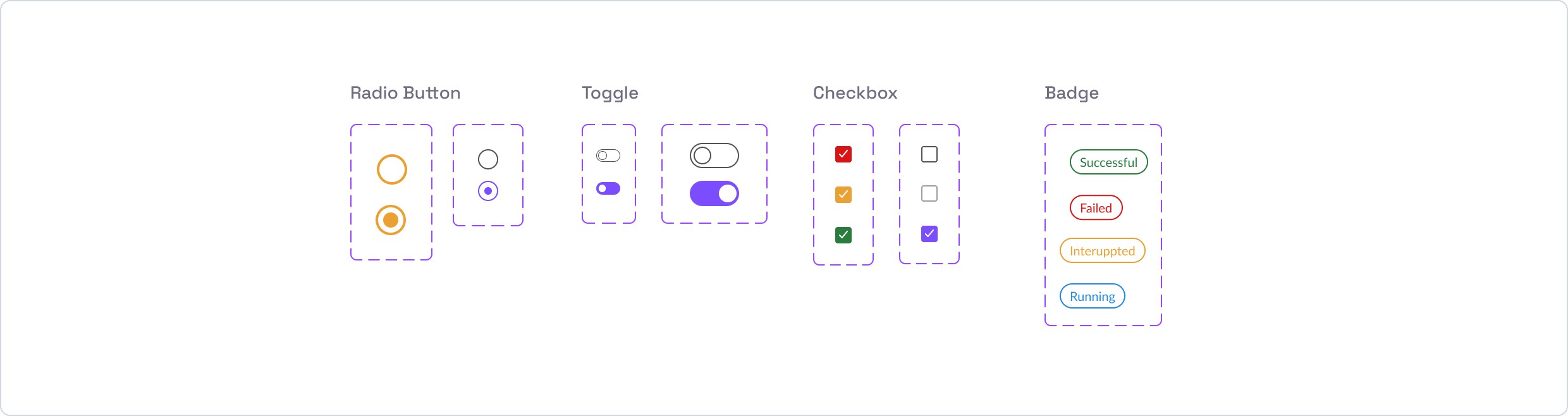
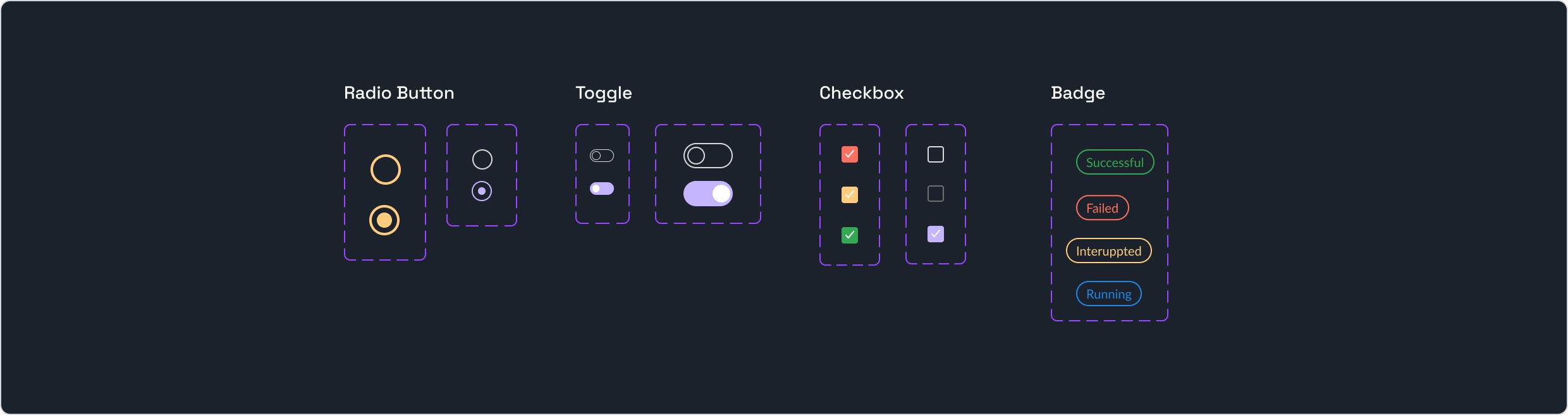
Radio buttons, checkboxes, and toggles are form elements designed for making selections.
Radio buttons, checkboxes, and toggles are form elements designed for making selections.
Radio Button
Radio Button
Radio buttons allow users to select one option from a group, representing a single choice mechanism.
Radio buttons allow users to select one option from a group, representing a single choice mechanism.
Checkbox
Checkbox
Checkboxes support multiple selections from a set, offering flexibility to choose several options.
Checkboxes support multiple selections from a set, offering flexibility to choose several options.
Toggle
Toggle
Toggles are used for binary settings, typically switching between two states such as "On" and "Off."
Toggles are used for binary settings, typically switching between two states such as "On" and "Off."
Badge
Badge
Badges are compact indicators used to inform users about the status or the count related to an object or action, facilitating quick recognition at a glance. They are not interactive components like buttons, and it's crucial to ensure they are visually distinct to avoid any confusion.
Badges are compact indicators used to inform users about the status or the count related to an object or action, facilitating quick recognition at a glance. They are not interactive components like buttons, and it's crucial to ensure they are visually distinct to avoid any confusion.
Loader
A loader (also called a loading indicator) is a UI element that shows the system is processing something and the user needs to wait.
A loader (also called a loading indicator) is a UI element that shows the system is processing something and the user needs to wait.


Search Bar
A search bar is a UI component that allows users to enter text to find information within an app or website.
A search bar is a UI component that allows users to enter text to find information within an app or website.


Tabs
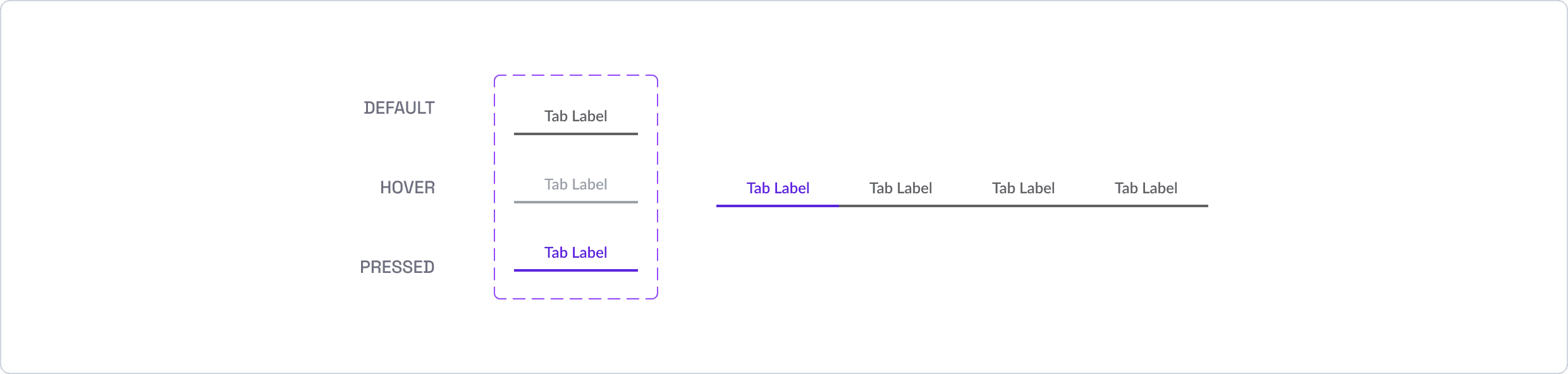
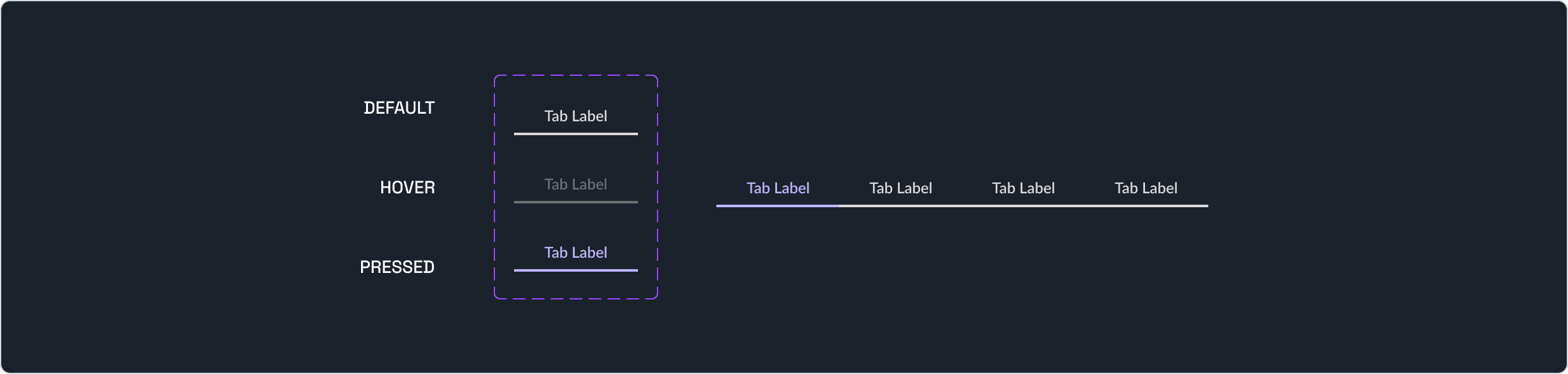
Tabs are interactive labeled controls that facilitate the organization and display of content by allowing users to switch between multiple views within the same page context. They effectively group related content, enhancing the discoverability and accessibility of information, making navigation intuitive and efficient without leading to a new URL.
Tabs are interactive labeled controls that facilitate the organization and display of content by allowing users to switch between multiple views within the same page context. They effectively group related content, enhancing the discoverability and accessibility of information, making navigation intuitive and efficient without leading to a new URL.
DEFAULT
HOVER
PRESSED
Tab Label
Tab Label
Tab Label
Tab Label
Tab Label
Tab Label
Tab Label
DEFAULT
HOVER
PRESSED
Tab Label
Tab Label
Tab Label
Tab Label
Tab Label
Tab Label
Tab Label
Impact: How the Design System Shifted the Project
Impact: How the Design System Shifted the Project
Design-to-development workflow.
With unified UI rules:
Users recognized patterns throughout the product.
Interactions became predictable, reducing cognitive load.
These improvements are essential in data-intensive interfaces where clarity drives effectiveness.
A design system transforms UI components into a consistent language that users learn — smoothing navigation and reducing confusion.
2. Scalability.
Subsequent feature development — including new Data Agent modules — was designed and implemented using existing system components. New patterns now have a clear evaluation bar: "does this need a new component, or does an existing one serve the need?" That question alone has reduced time spent on bespoke UI solutions.
Brand and trust.
For enterprise users, visual consistency is a trust signal. A platform where buttons behave consistently, alerts read predictably, and navigation follows a logic users can internalize is a platform users feel confident building their workflows on. The design system made that consistency possible at scale.
Design-to-development workflow.
With unified UI rules:
Users recognized patterns throughout the product.
Interactions became predictable, reducing cognitive load.
These improvements are essential in data-intensive interfaces where clarity drives effectiveness.
A design system transforms UI components into a consistent language that users learn — smoothing navigation and reducing confusion.
2. Scalability.
Subsequent feature development — including new Data Agent modules — was designed and implemented using existing system components. New patterns now have a clear evaluation bar: "does this need a new component, or does an existing one serve the need?" That question alone has reduced time spent on bespoke UI solutions.
Brand and trust.
For enterprise users, visual consistency is a trust signal. A platform where buttons behave consistently, alerts read predictably, and navigation follows a logic users can internalize is a platform users feel confident building their workflows on. The design system made that consistency possible at scale.
Key Takeaways for Future Projects
Key Takeaways for Future Projects
Design systems aren’t stylistic — they’re strategic.
They reduce ambiguity, scale product development, and help teams ship better features faster.
Build systems not just for visuals — build them for relationships and interactions.
Document behaviour, not just appearance — front-end engineers, designers, and product managers all benefit.
Design systems aren’t stylistic — they’re strategic.
They reduce ambiguity, scale product development, and help teams ship better features faster.
Build systems not just for visuals — build them for relationships and interactions.
Document behaviour, not just appearance — front-end engineers, designers, and product managers all benefit.
What I'd do differently
I'd involve engineering earlier in component prioritization — some components I built first took time to get implemented because they weren't engineering priorities.
What I'd do differently
I'd involve engineering earlier in component prioritization — some components I built first took time to get implemented because they weren't engineering priorities.
Next Project
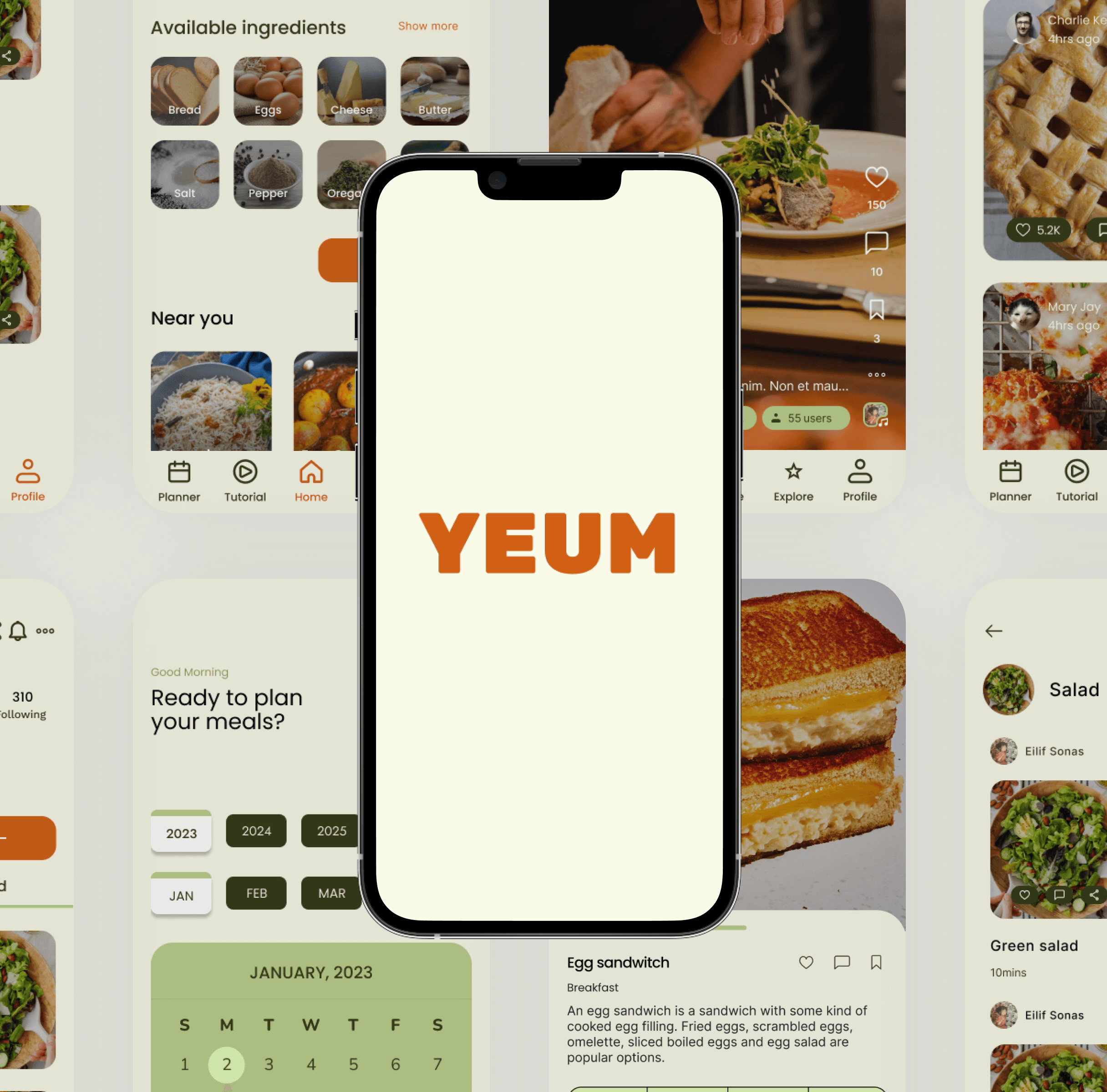
Yeum
Recipe Curation app for meal planning
Mobile App
Next Project
Yeum
Recipe curation app for meal planning
App Design